app ID - 999D4F62-8A9B-4BFB-A20C-0CDEA2931FD6
page - default
Hi,
An image disappeared from a block and I cannot save an image to that block.
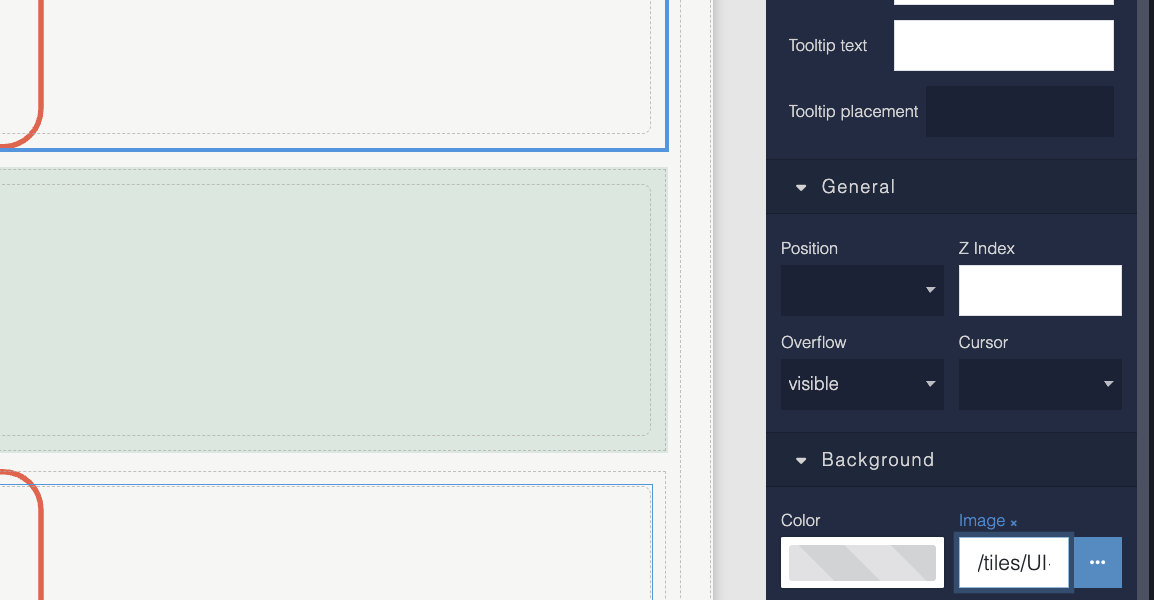
Old images - when I copy link from file server, the link looks like this - /tiles/UI+Interface/culinary+with+questionmark.svg
But any new images get - https://eu.backendlessappcontent.com/999D4F62-8A9B-4BFB-A20C-0CDEA2931FD6/7F2FE6D0-B7ED-4D21-9F2A-9C0C2AF3373C/files/UI%20Interface/buildingManagementPick3.svg
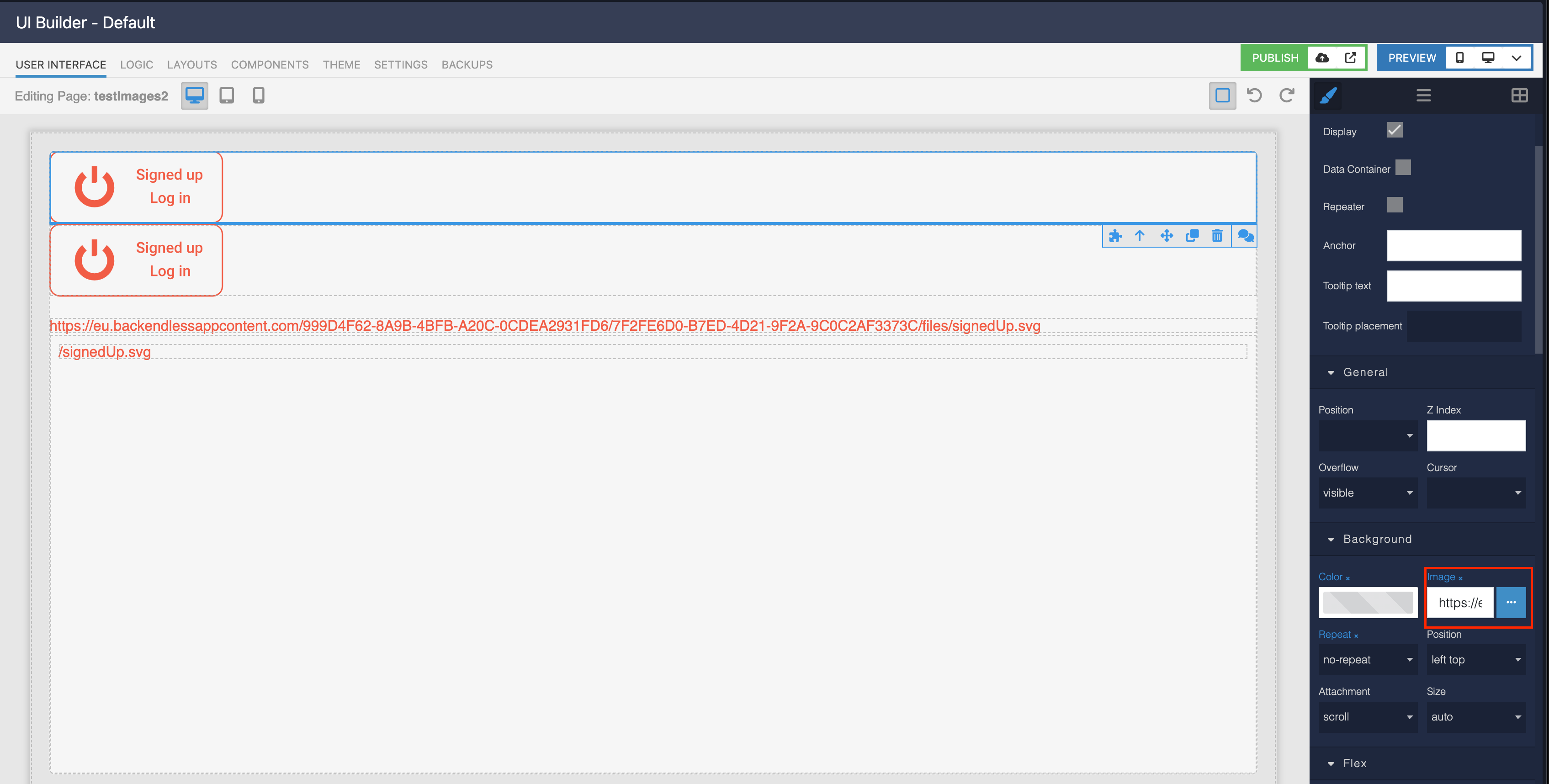
The old images can be used and copied to blocks on the page BUT the green block will not display any copied links.
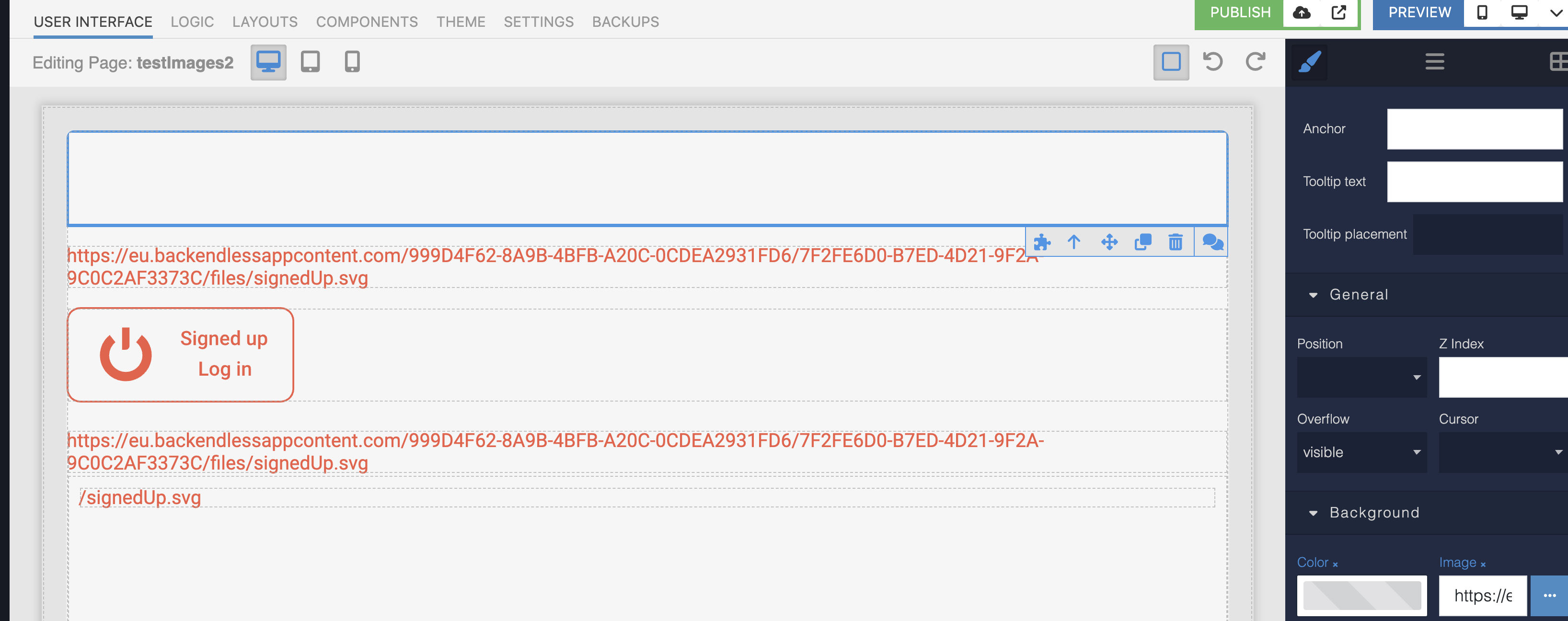
I’ve tried creating new blocks but also will not display the images.
I should point out that the app has been sitting dormant for 6 months.
Cheers
Paul
Hi Paul,
I am sorry, but I am having hard time understanding what you mean by “saving an image to a block”. Also, cropped images do not help as much as they are missing important context. Ideally, it would be great if you could record a loom video where you describe the problem and share it with it.
Regards,
Mark
Hi Mark,
Images added to containers previously ( 6+ months ago ) have a complete path which look like this - /tiles/UI+Interface/cultivation+with+questionmark.svg
but now, any image added to a container has a path like this -https://eu.backendlessappcontent.com/999D4F62-8A9B-4BFB-A20C-0CDEA2931FD6/7F2FE6D0-B7ED-4D21-9F2A-9C0C2AF3373C/files/tiles/UI%20Interface/calender%20from%20date.svg
If I cut and paste /tiles/UI%20Interface/calender%20from%20date.svg, the image is displayed.
I hope thats a bit easier to understand.
Cheers, Paul
Hey Paul,
Here’s a video that shows how I understood what you’re describing:
Regards,
Mark
Hi Mark, Thankyou for taking the time to record a video. We’re doing the same actions but my system dosen’t work with full urls for the images. I’ve recorded a quick video.
Regards,
Paul
Hello Paul,
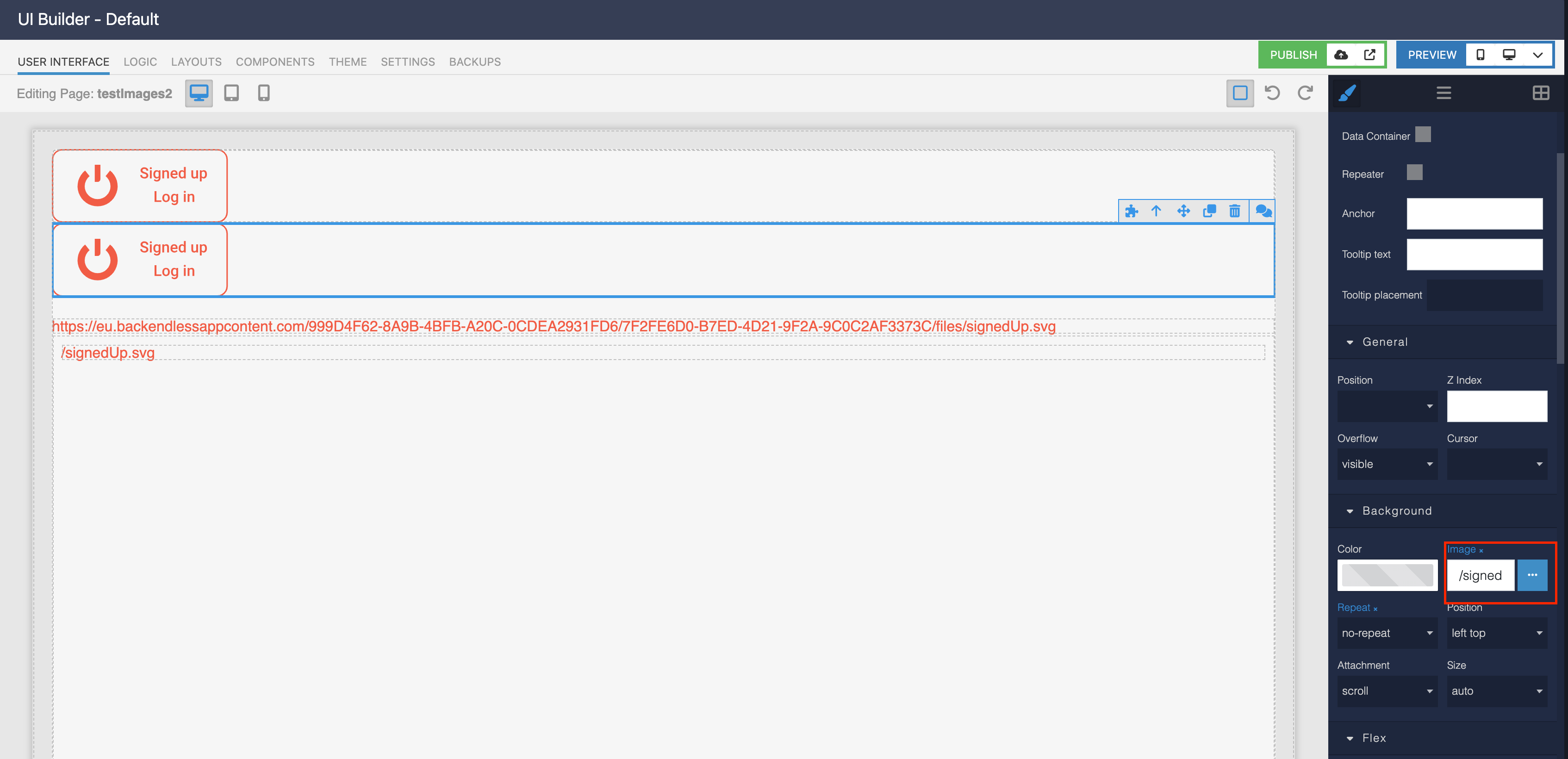
I’ve just checked both in my app and in yours, and the preview appears in both cases. I’ve also added an extra block for clarity:
Could you please check again and let us know whether you can see the preview in both blocks?
Thank you!
Regards,
Alexander
Hi Alexander,
I don’t see your image.
Thank you for the information you’ve provided!
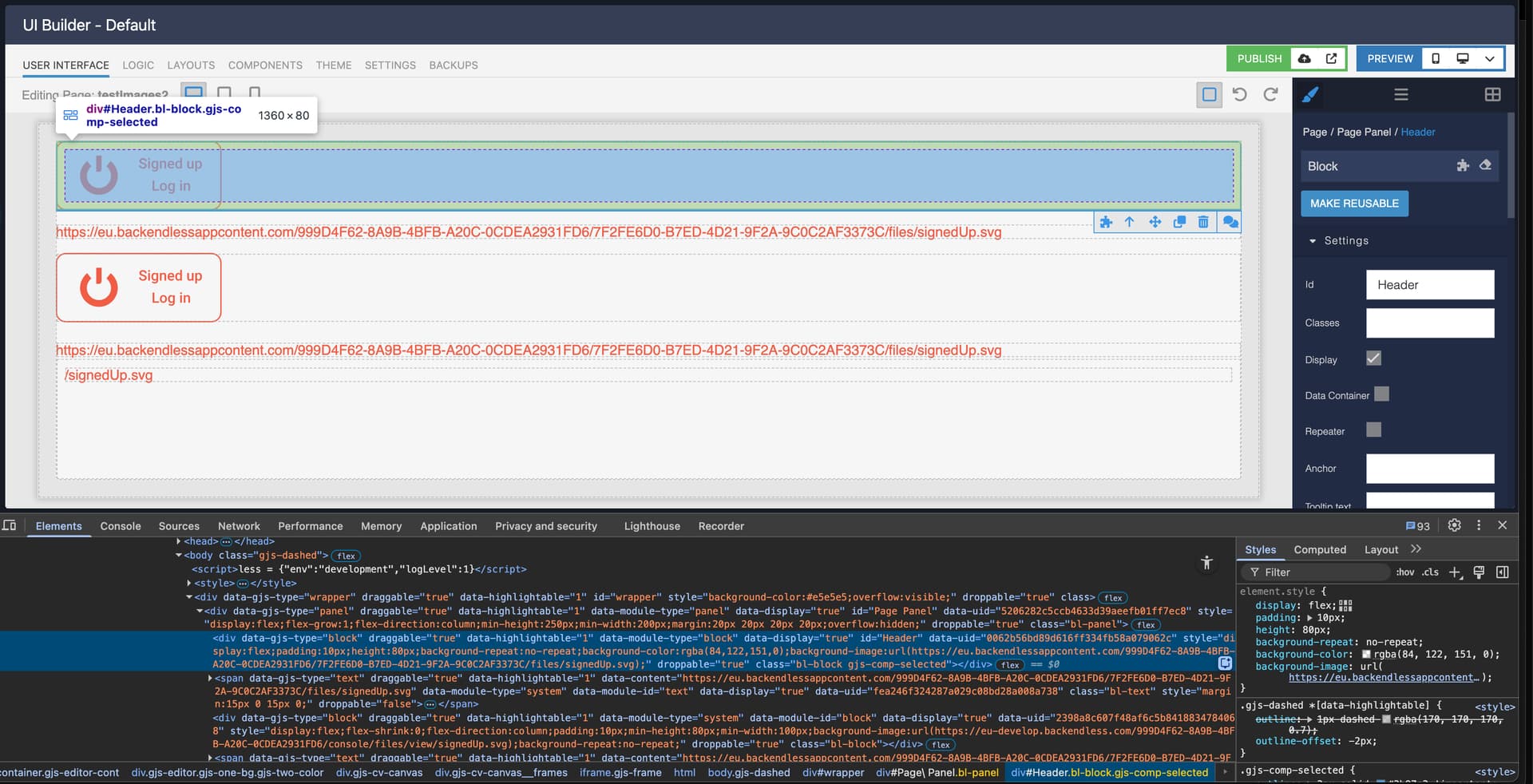
Could you also open your browser’s Developer Tools (e.g., F12), go to the Elements tab, and select the block where the preview isn’t showing?
Please share a screenshot of the selected element (including its HTML and computed styles). If you notice any errors in the Console or failed requests in the Network tab, a screenshot of those would be very helpful as well.
Regards,
Alexander
Hi, screen shots as requested.
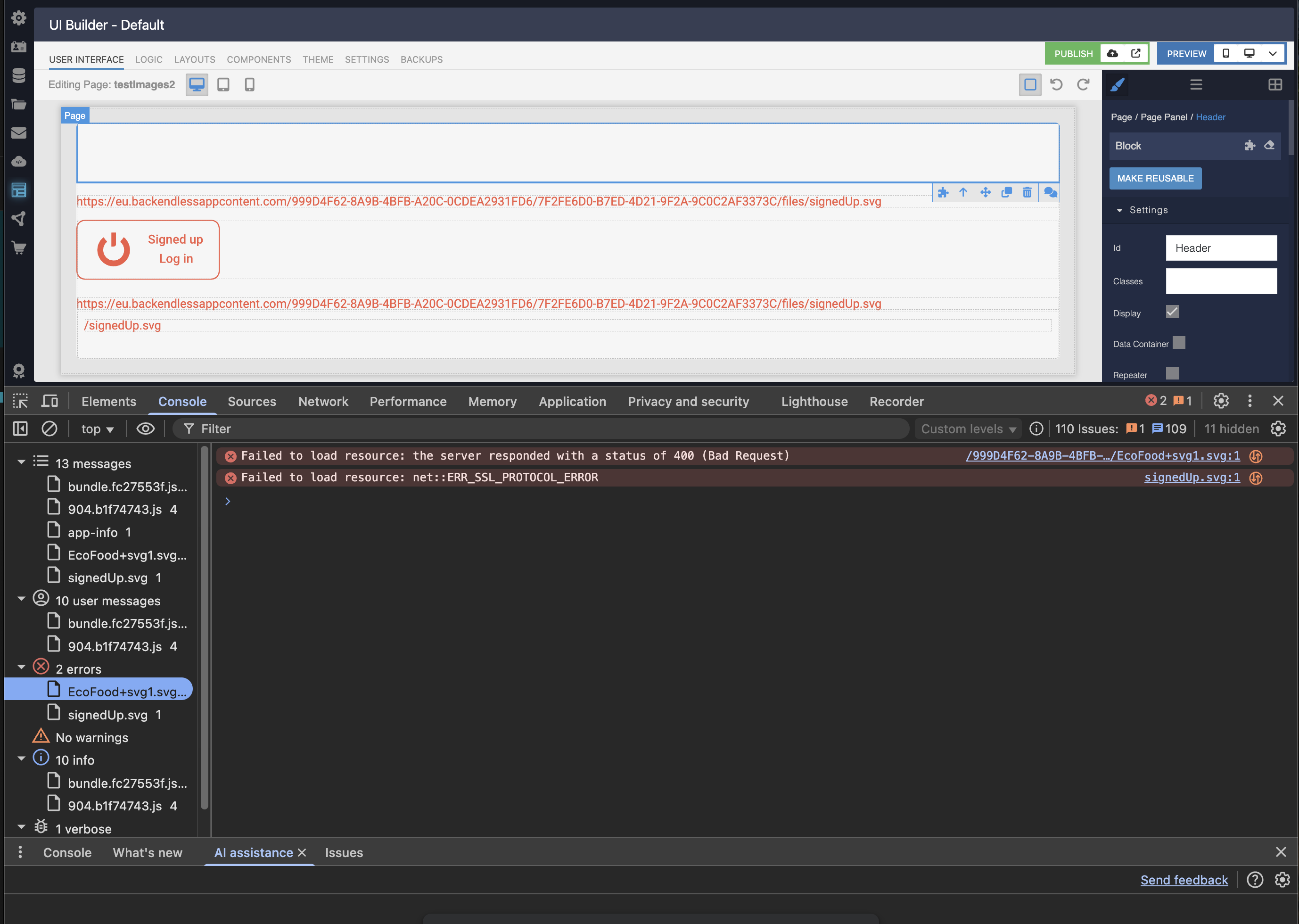
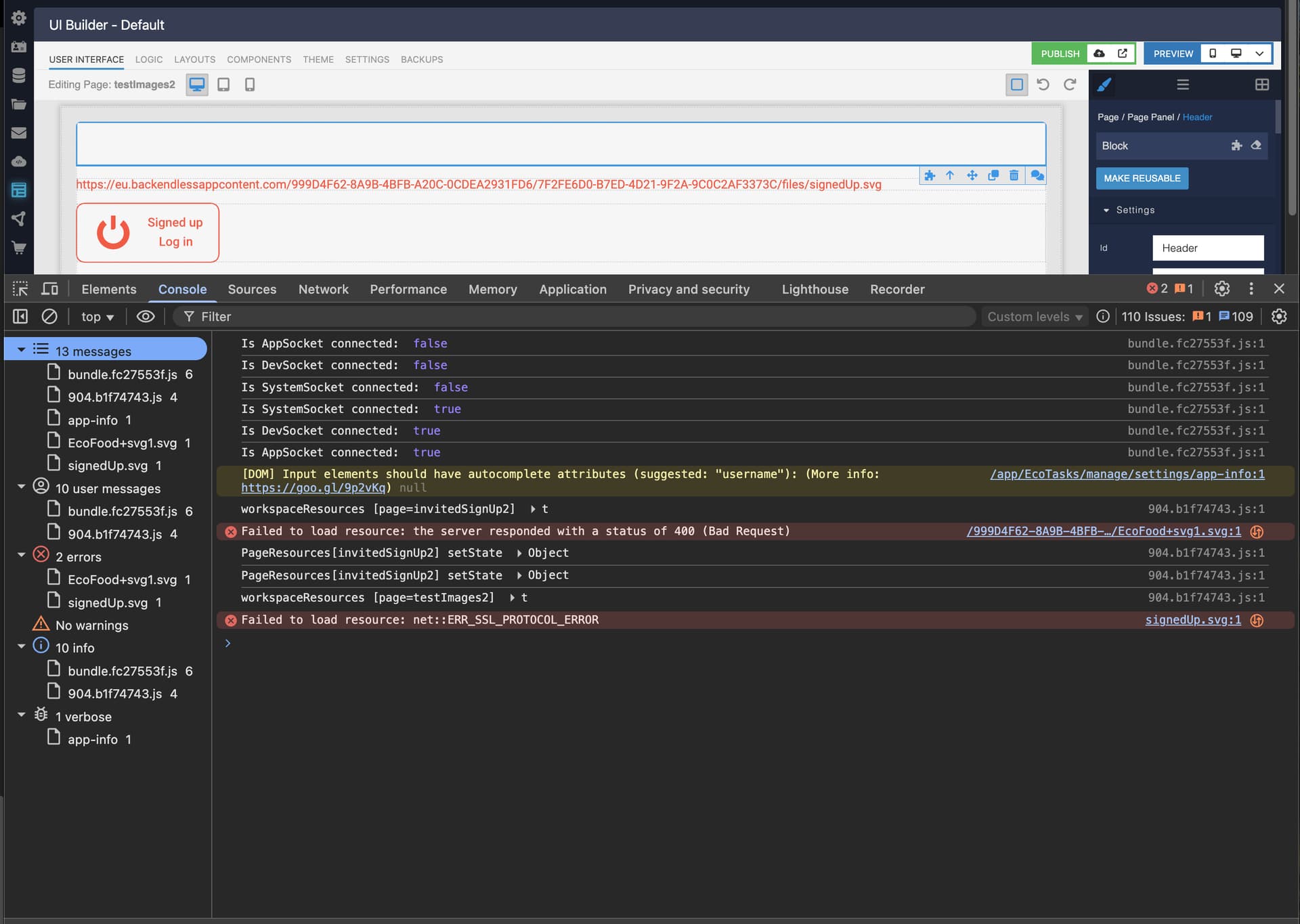
The only element which I don’t understand is error - ‘Failed to laod…….EcoFood+svg1.svg [I don’t know where this is on th UI]
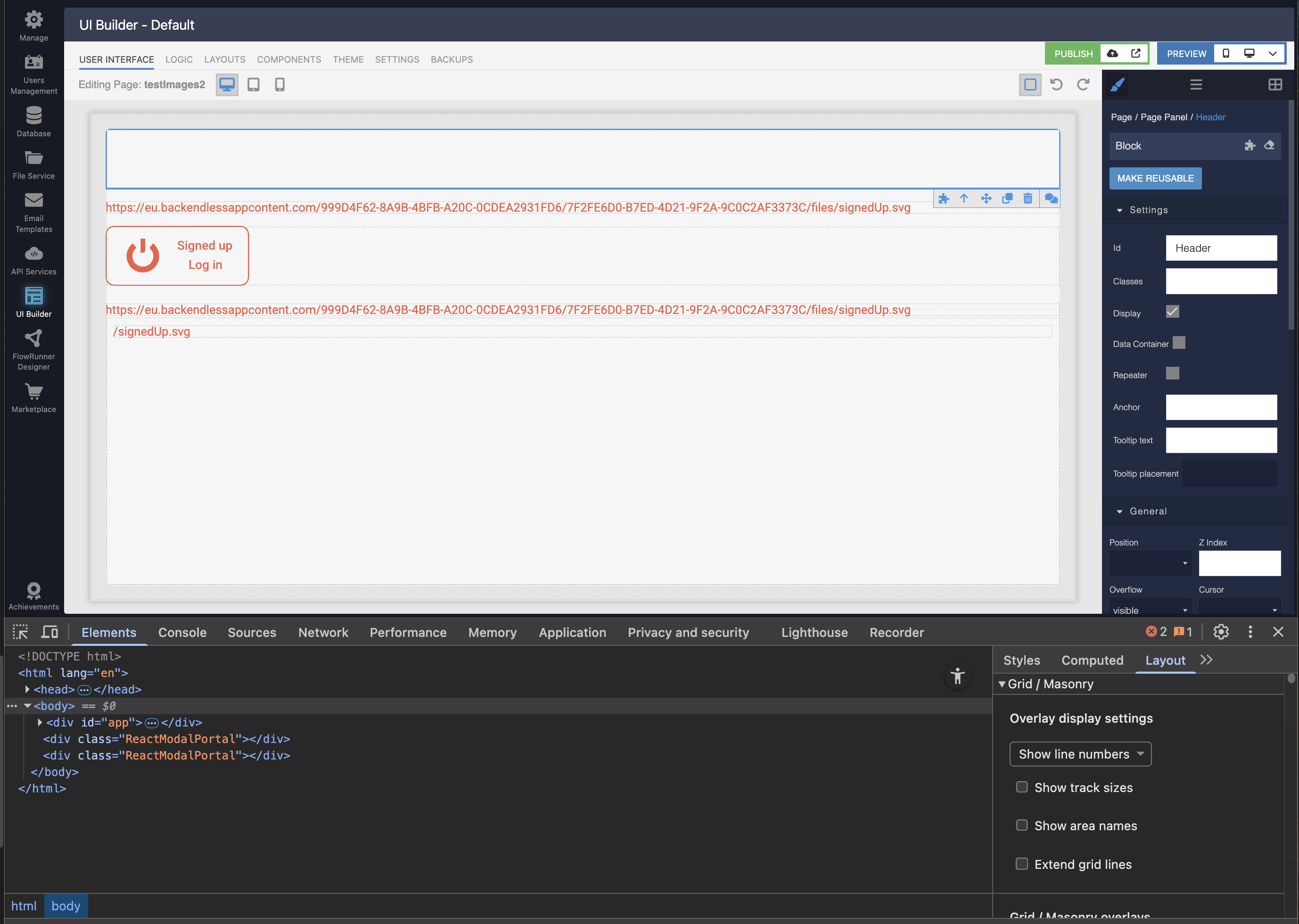
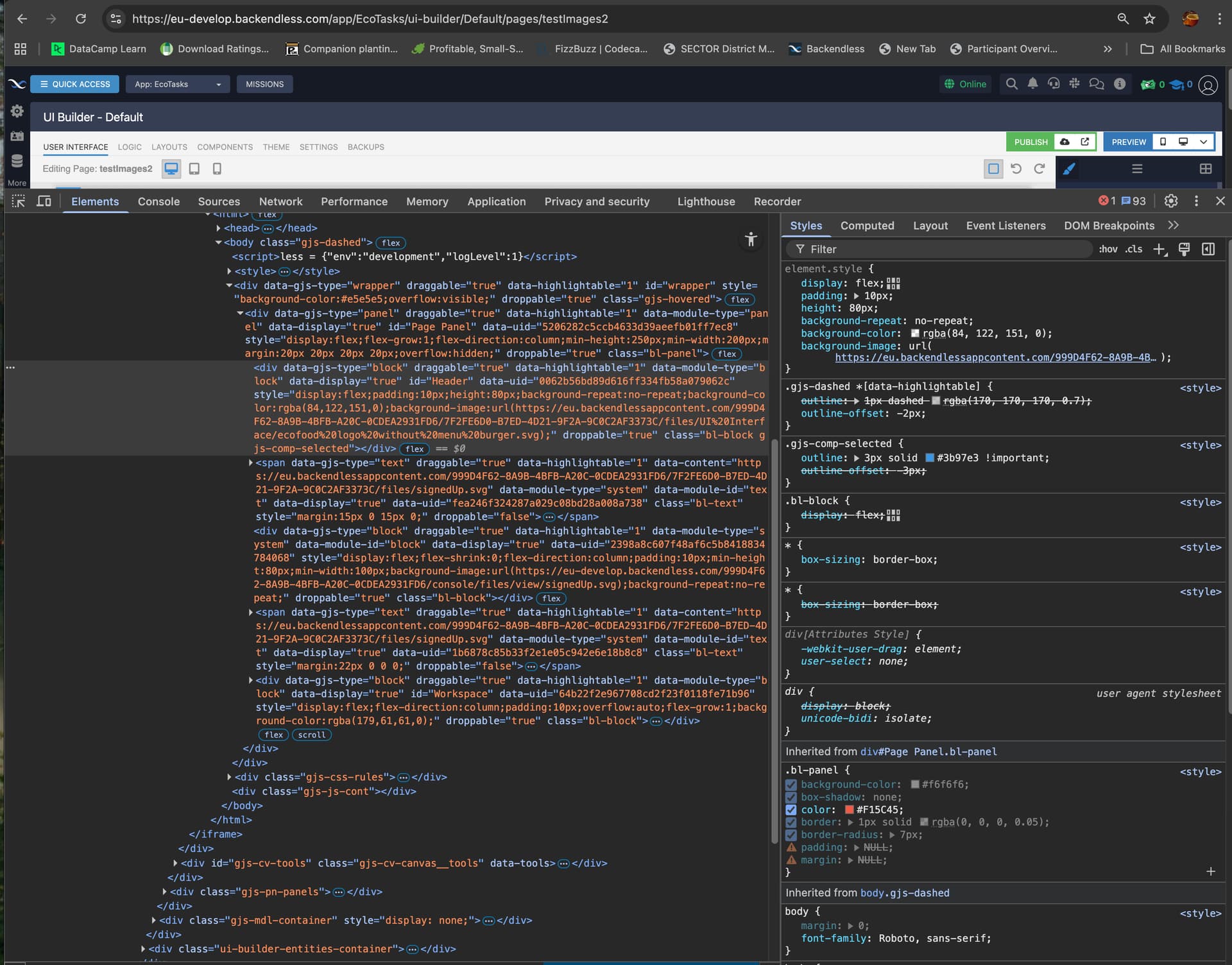
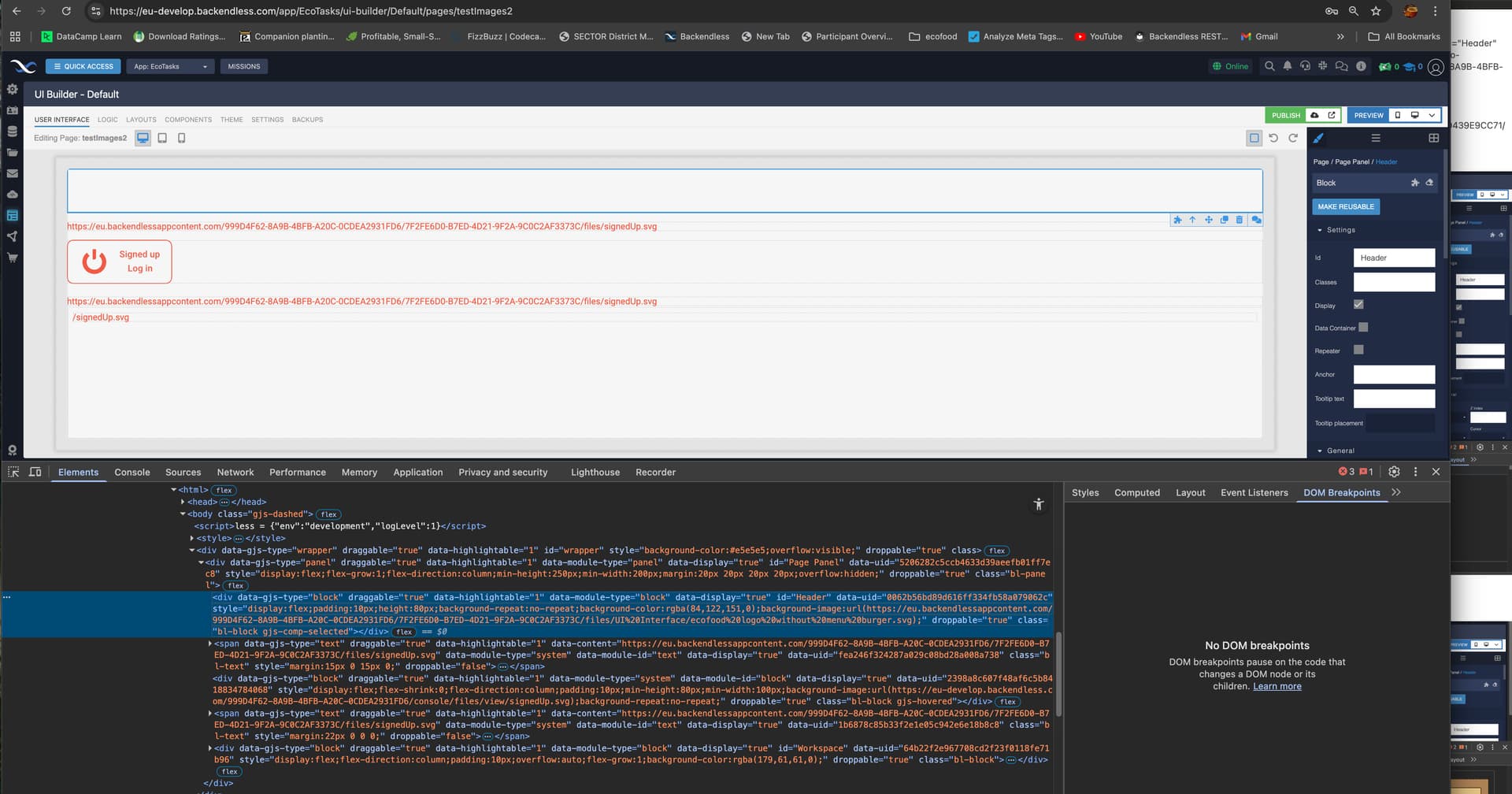
elements tab
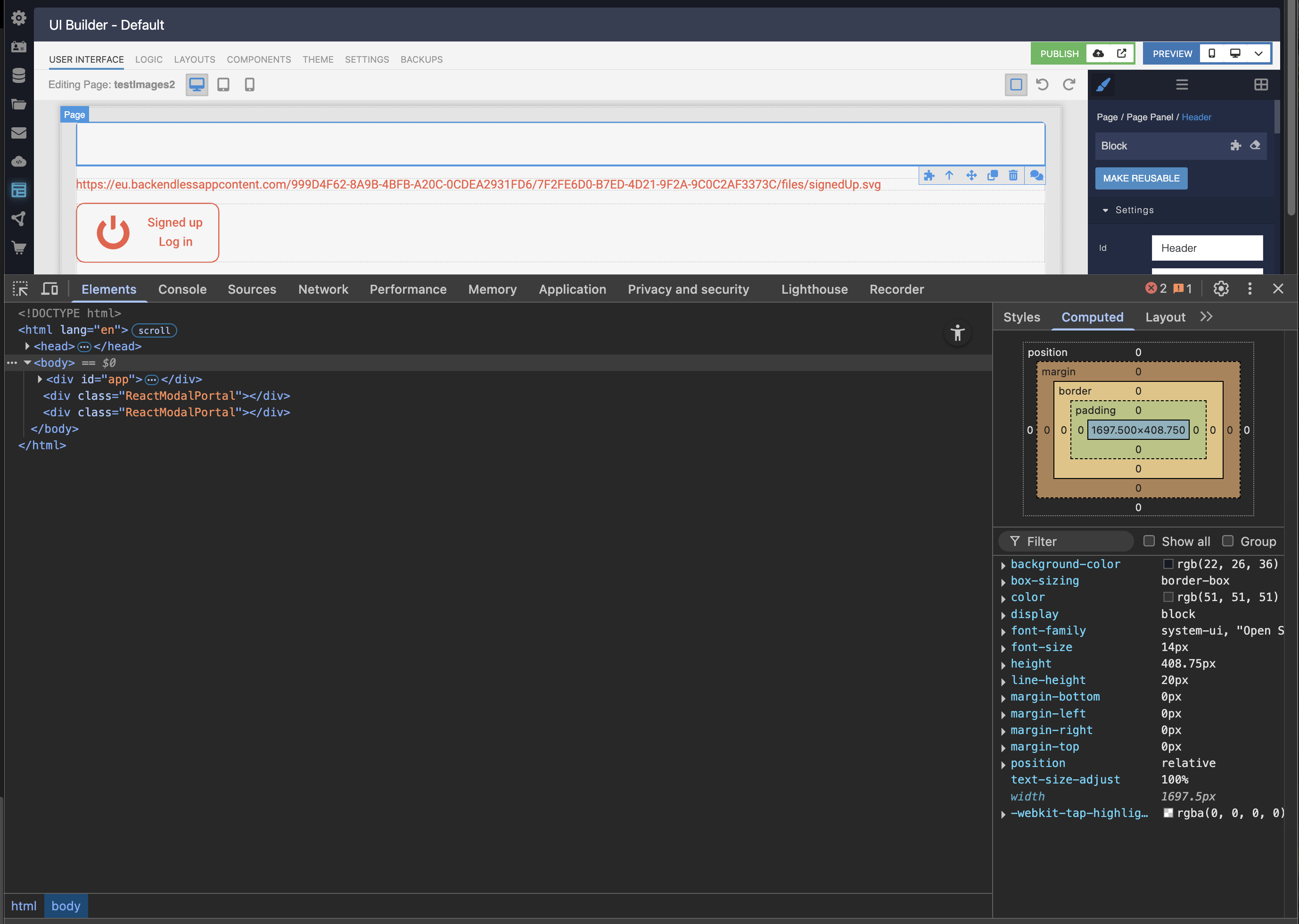
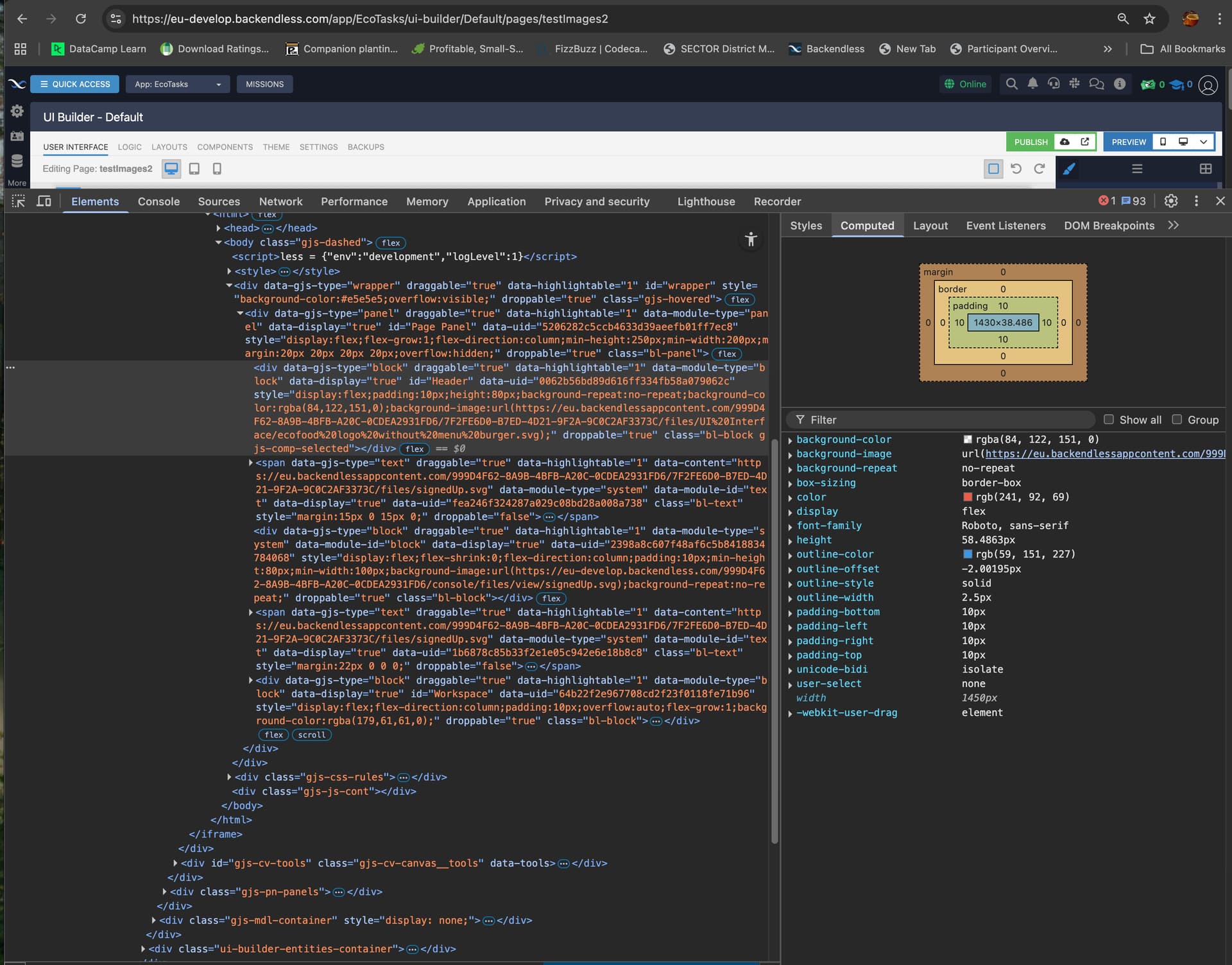
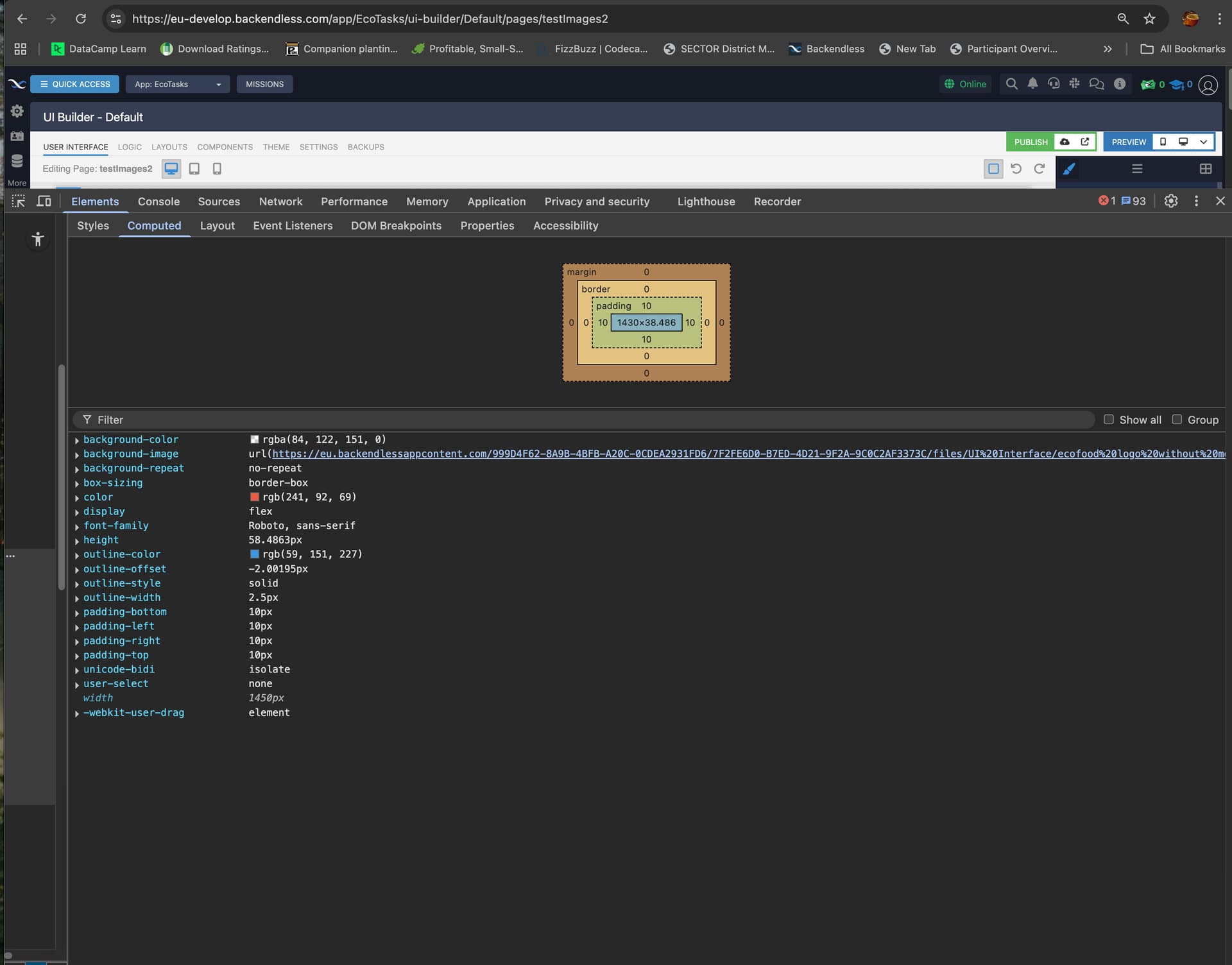
computed styles
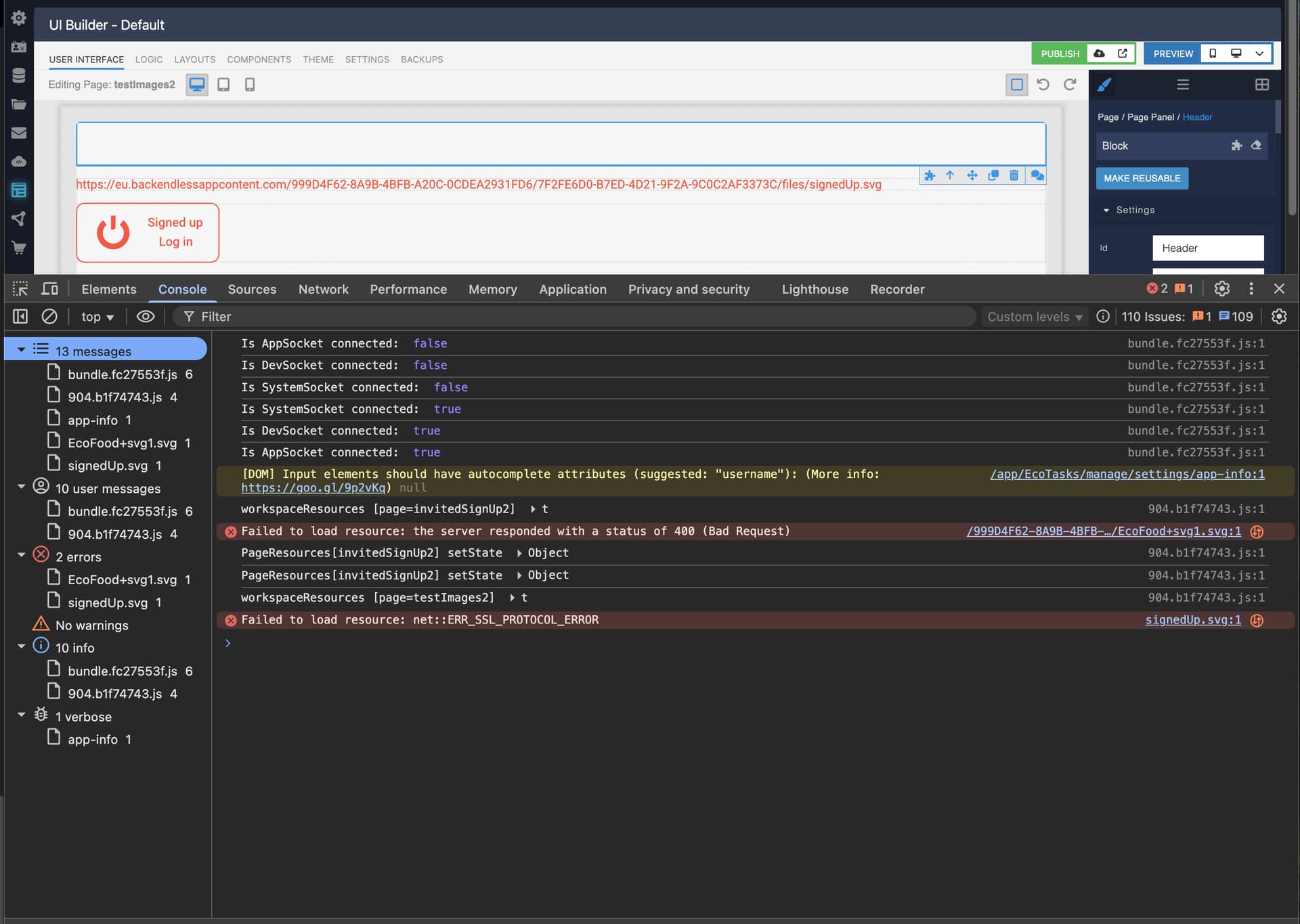
console error messages
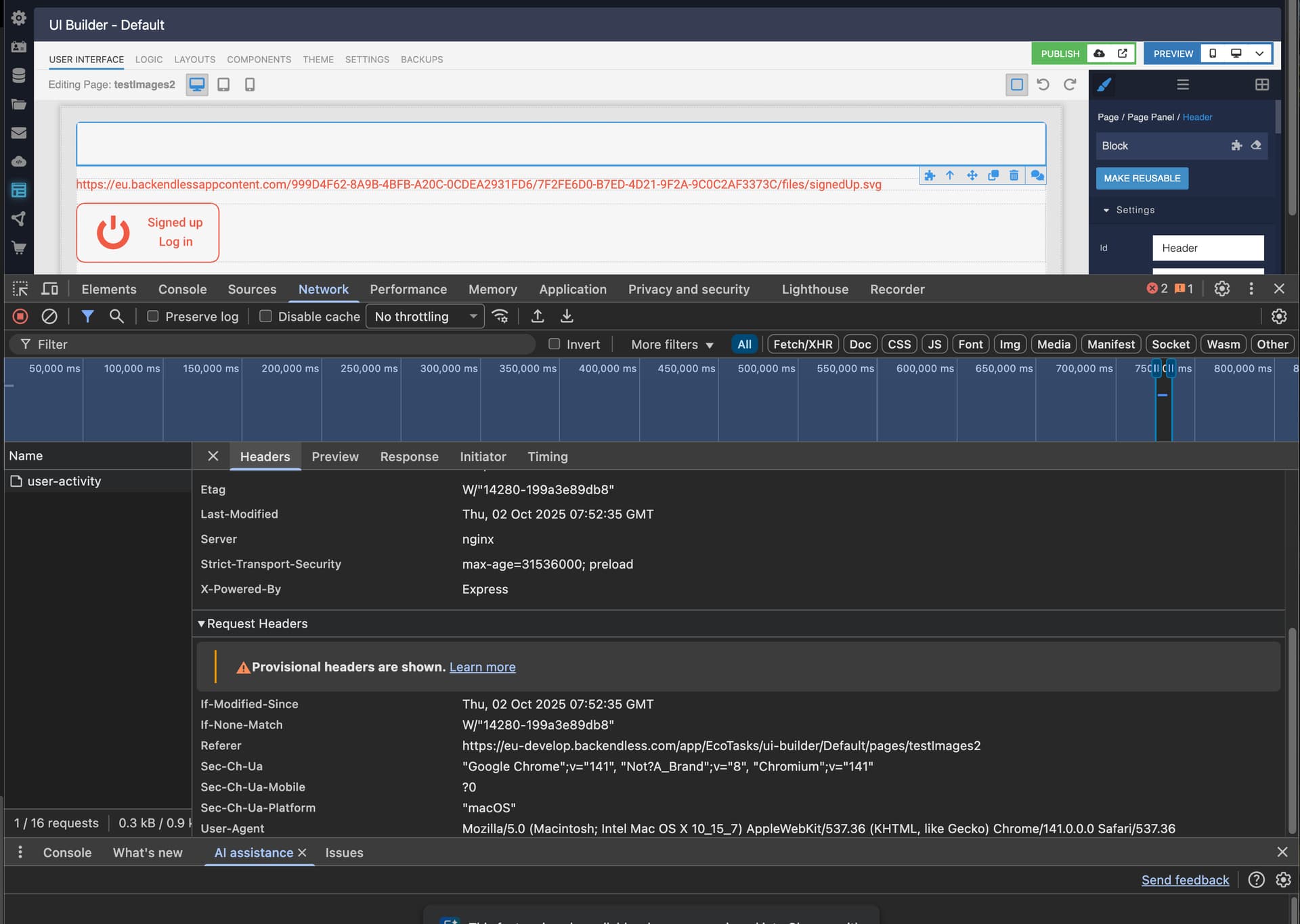
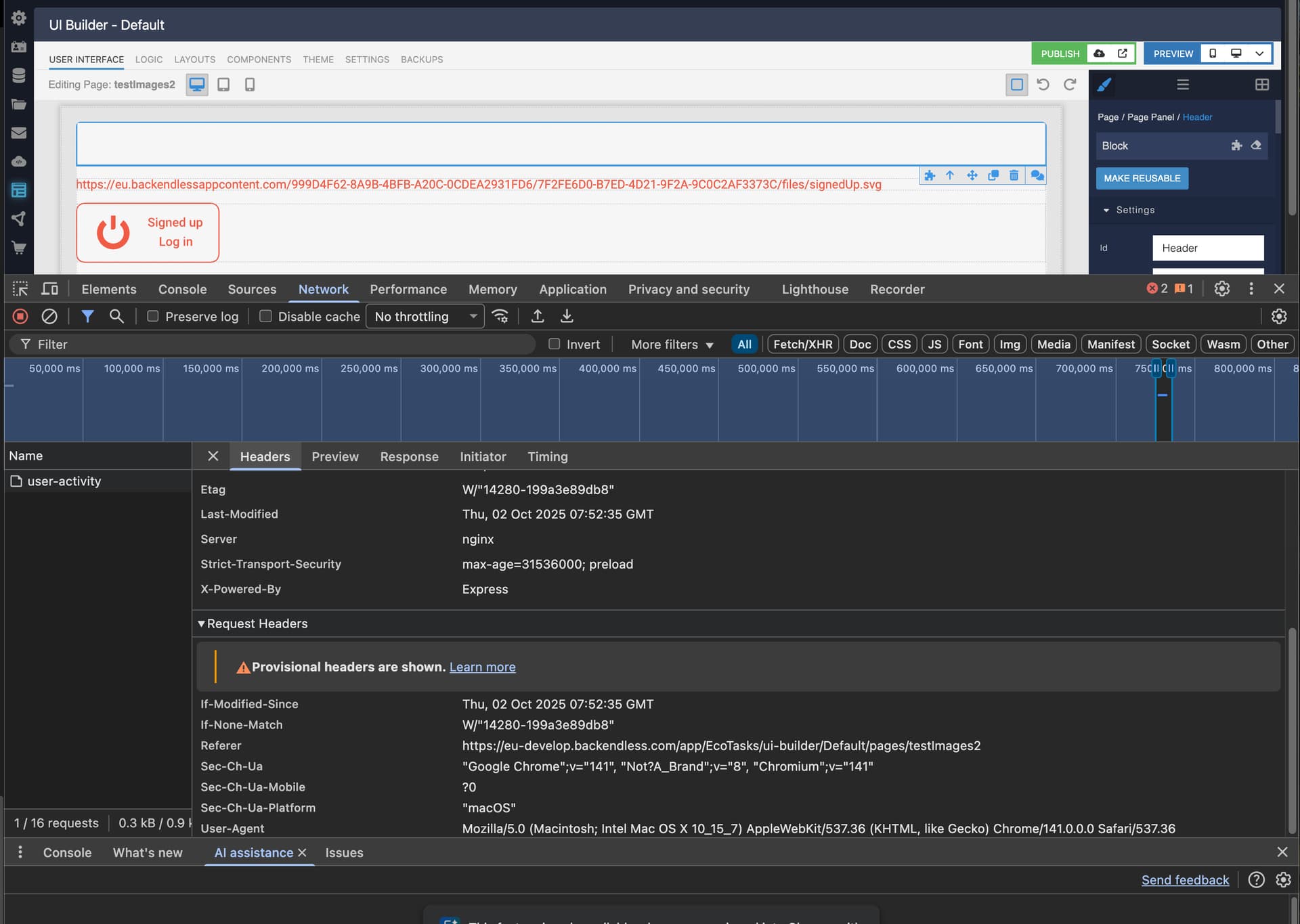
network
Thanks for following up. Could you please try the steps below?
- Elements (select the exact block)
- In your screenshot you have
<body> selected. We need the block itself (like on my screenshot).
- In the Elements tab, hover over the page until the blue overlay highlights the block with the preview, then click that element (it should be the block container; you can also right-click the block in the UI and choose Inspect).
- Please send a screenshot with that element selected, showing the Styles / Computed panel — especially the
background-image (or src) value.
- Network (capture the failing request)
-
Open DevTools → Network, enable Preserve log, then reload the page.
-
In the filter box type signedUp.svg.
-
Click the failing request and share screenshots of:
- Headers (General + Request URL + Status Code + Referrer + Referrer Policy)
- Response (or Preview)
Also paste the exact Request URL if possible.
- Environment check
- Please try Incognito (no extensions) and temporarily disable any ad blocker/VPN/antivirus. Let us know if the behavior changes.
Thanks again! This will help us pinpoint why it reproduces only on your side.
Regards,
Alexander
Hi Alexander,
I’ve followed your instructions.
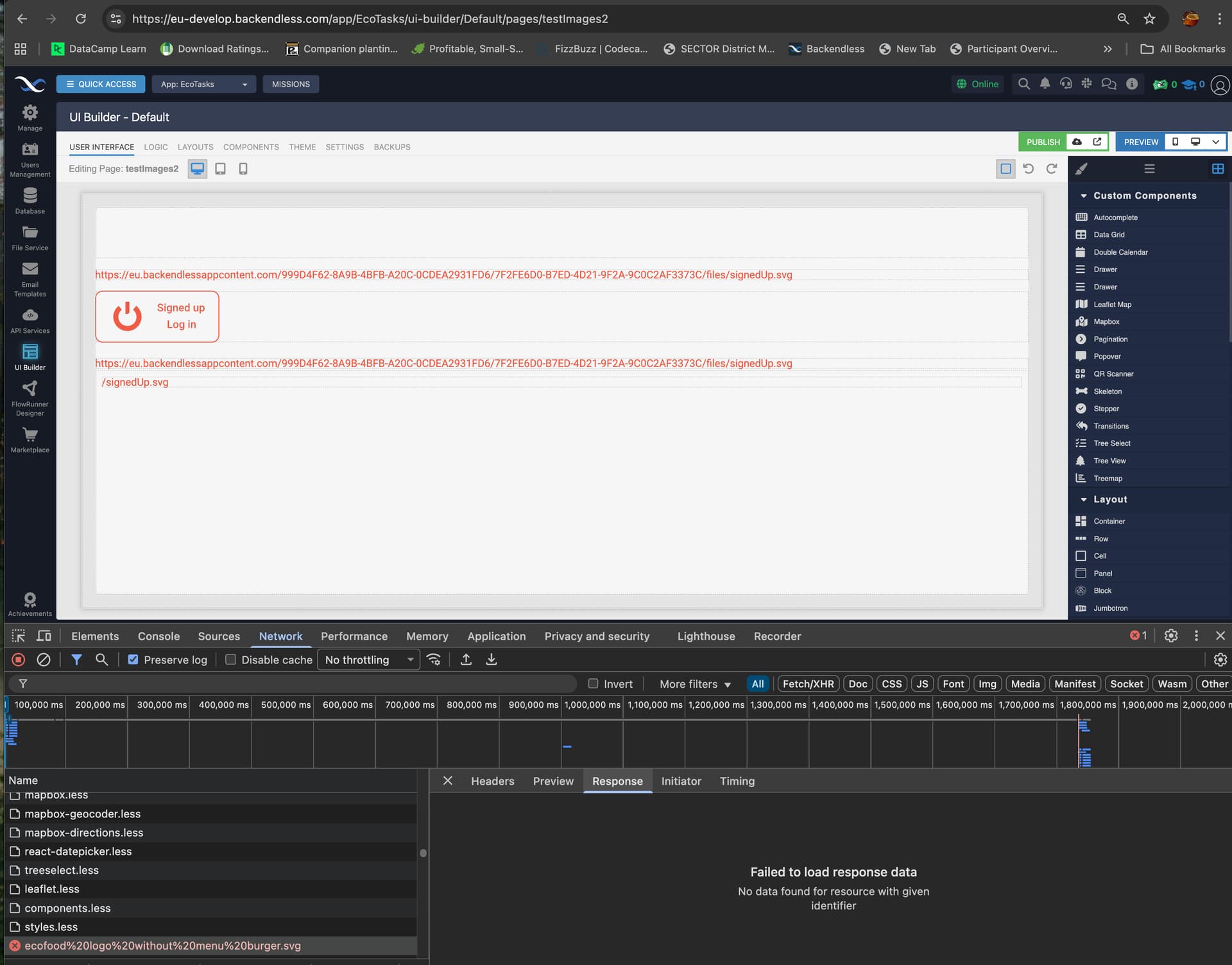
One thing that showed up aws that the image file ‘signedUp.sgv’ is visible and not showing any errors BUT another file “ecofood logo without menu burger.svg” is throwing errors but I don’t know where it is in the UI.
I’ve added proofs for both image files. I hope you can follow them!
• 1. point 3, screen shot
computed -
background - image
file cop&paste -
screen shot of above -
signedUp.sgv details
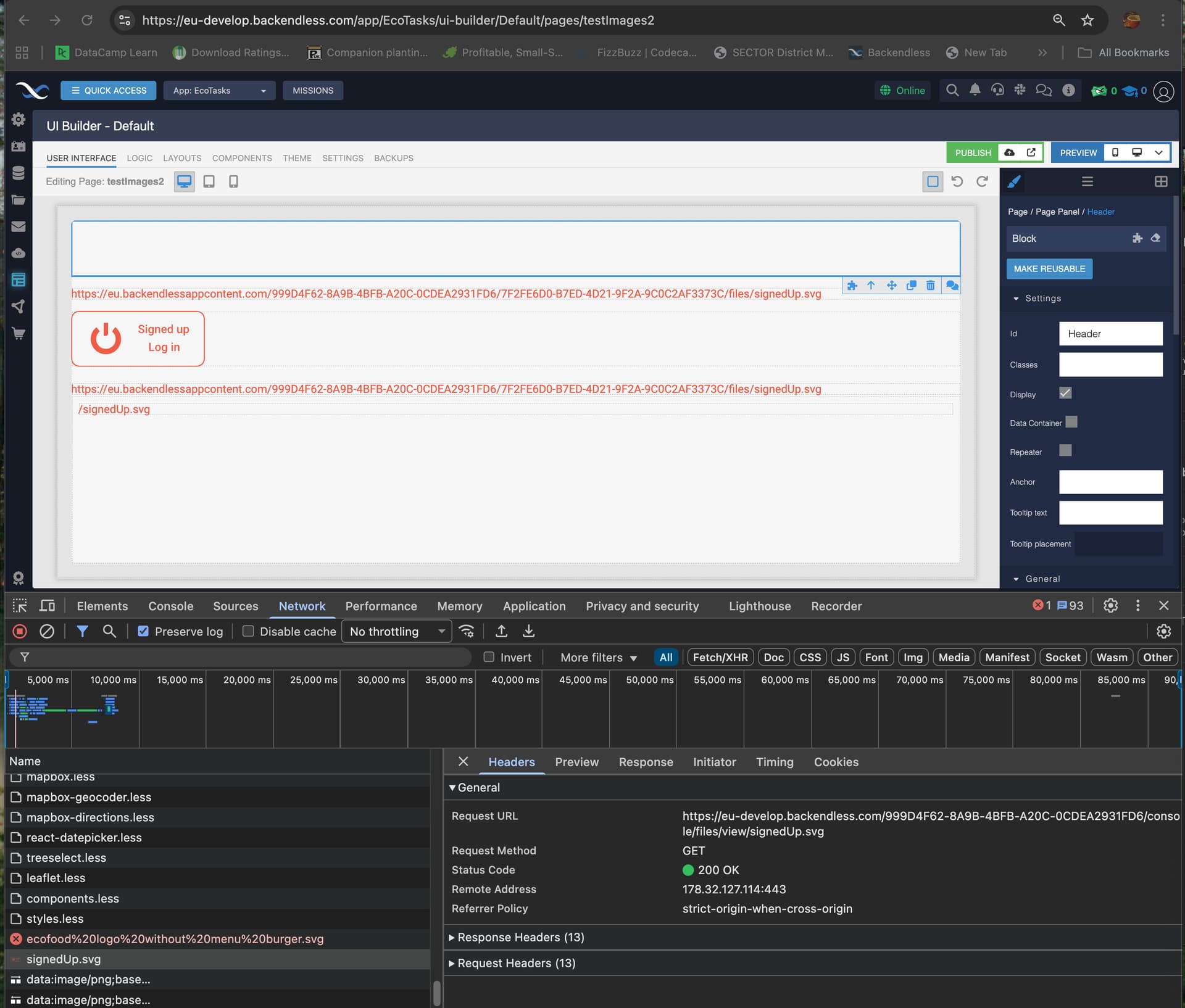
2., 2nd point - in the filler box type signedUp.svg
The file signedUp.svg is NOT showing as failed -
screenshot - Headers
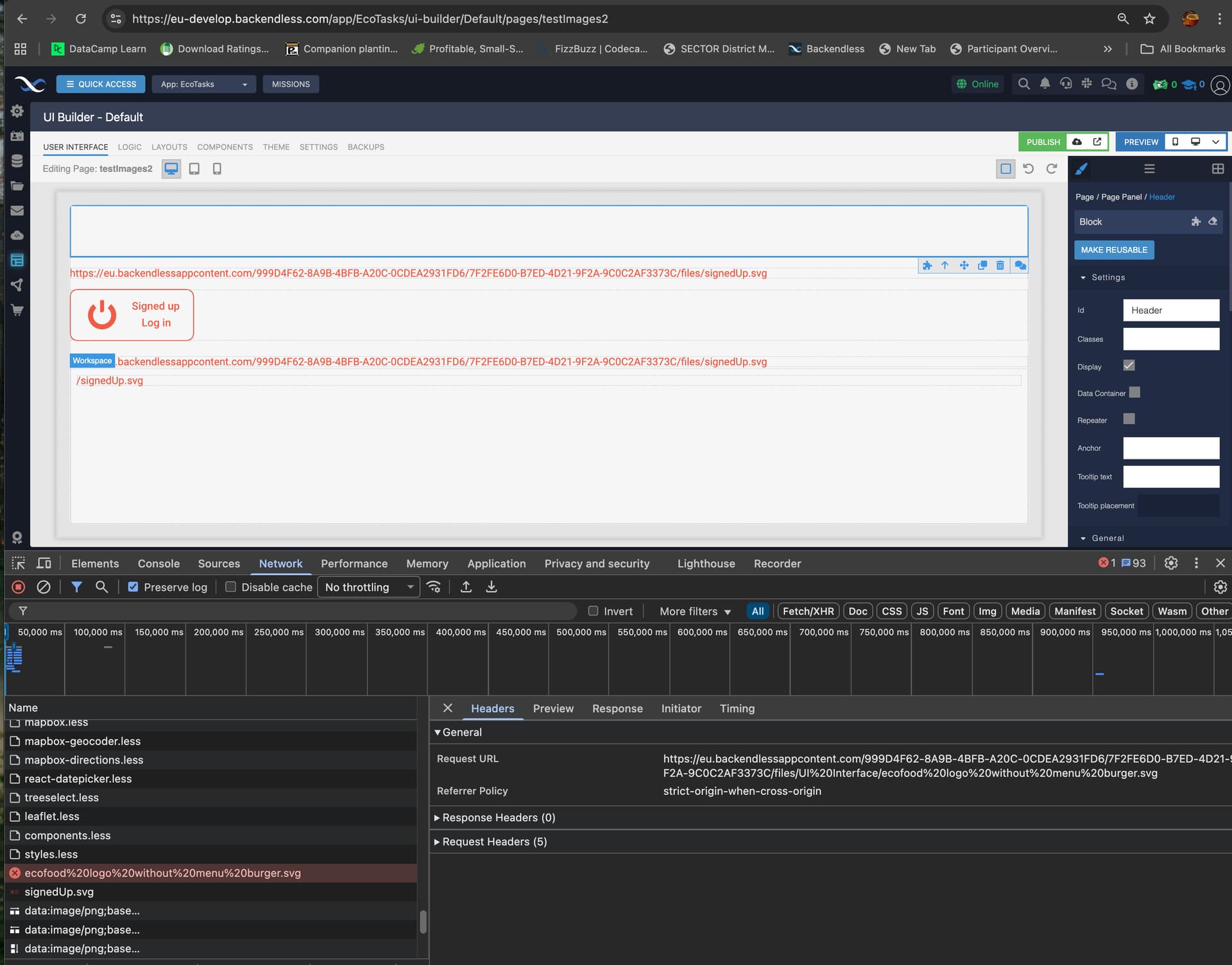
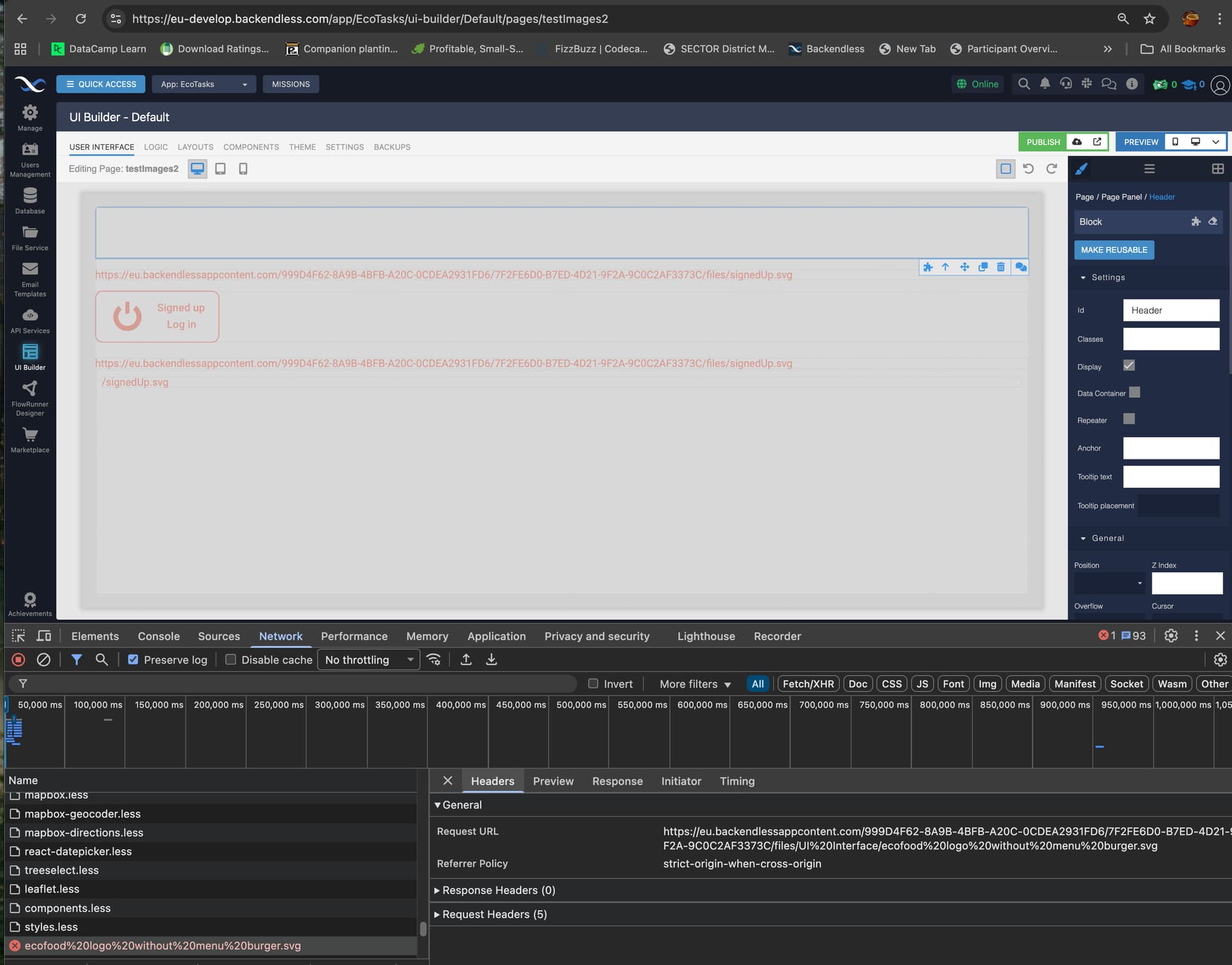
The file ‘ecofood logo without menu burger.svg’ is showing error but I can’t find it in the UL interface
“ecofood logo without menu burger.svg”
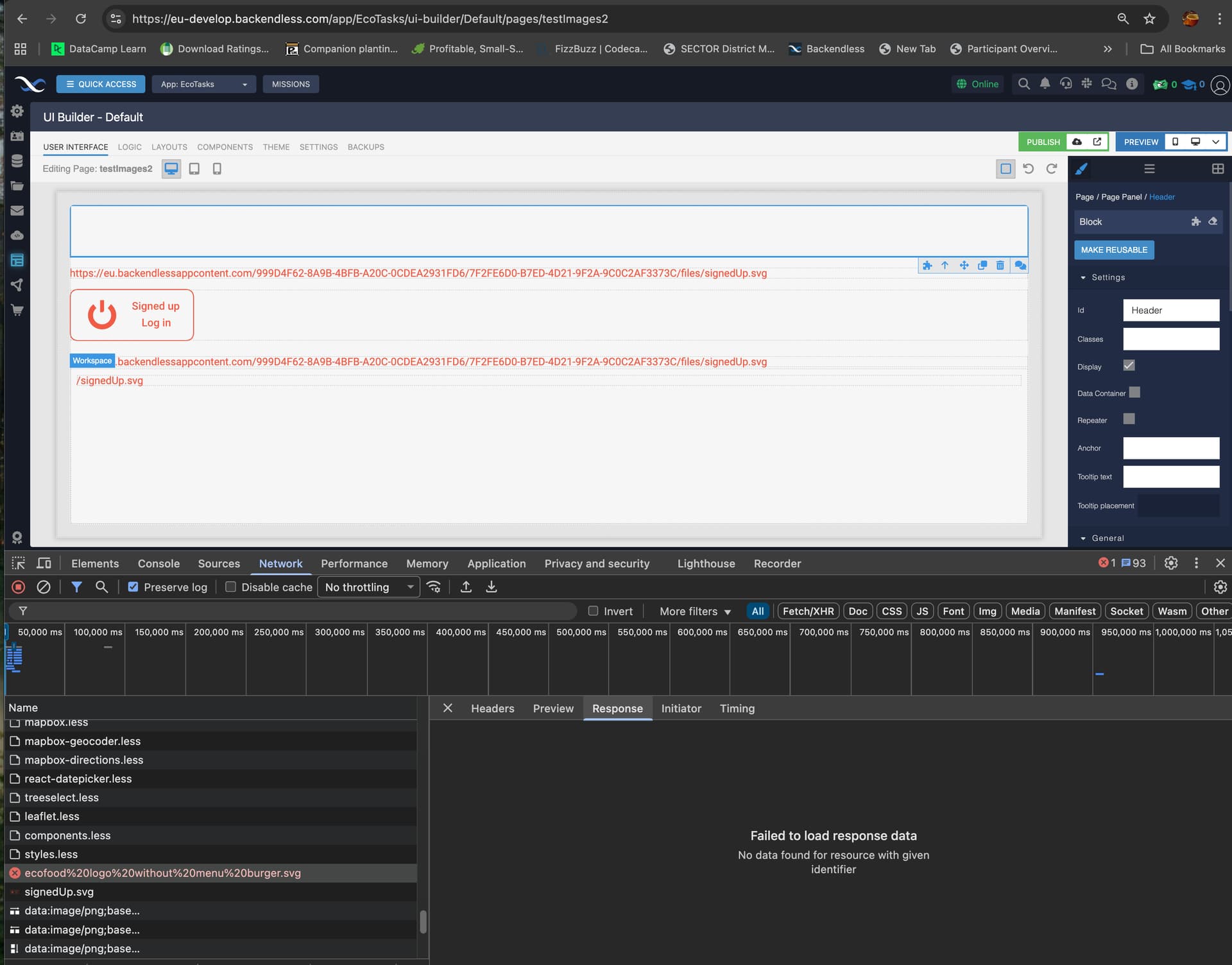
response -
copy div header.bl-block.gis-comp-selected
screen shot of above -
https://eu.backendlessappcontent.com/A751954A-1A20-4026-910F-B1ABD305995F/09FB8DC0-0FE5-4551-8E2A-CD0439E9CC71/files/appGraphics/signedUp.svg
elements tab
computed styles
console error messages
network
‘Failed to load…….EcoFood+svg1.svg [I don’t know where this is on th UI]
network -
response & preview showing same info
- Environment check
Ran in chrome incognito with blocker, vpn etc disabled
Produced same errors
NOTE -
I created another app, ecofood and tried to add an image. The same problem happened.
Is there anything wrong with my overall account settings? Is EU location causing any problems connecting to file store?
Regards,
Paul
Hi @Mark & @Alexander,
I’ve found the problem and it has nothing todo with Backendless. My router was and wasn’t allowing Backendless communication. This was a problem I had before but it appeared to have been fixed with a reset and clean out of cookies.
Then, more recently backendless appeared to be working other than absolute file recognition on images.
I was working away from the office when I noticed the app was displaying images correctly.
My router was flagging backendless as suspicious. I’ve reset the configuration for the router and all is working.
Thank-you for your help.
Paul